Before any kit
Choose your assistant.
Find your rhythm.
Every kit is a folder of instructions. The assistant reads the folder and runs the job with you. There are two we have built and tested the kits against, and you only need one of them.
If you already pay for one of these, use it and skip the rest of this page. Fifteen minutes, mostly waiting for a download.
01 The recommendation
Claude Code, in the Claude desktop app.
This is the one the kits are written around. The instructions inside every kit describe its layout, so what you read matches what you see.
Install · about ten minutes
Download and sign in
Go to claude.com/download, install the app for your computer, and sign in. Then click the Code tab at the top. That tab is Claude Code, and it is where every kit runs. There is nothing else to install for Claude itself.
Cost · US$20 a month
You need the Pro plan, at least
The free Claude plan will not open the Code tab, so a paid plan is not optional here. Pro is US$20 a month and is enough for a kit. This is the only monthly cost in any of this; the hosting for a website is free, and the kit itself is a one-off purchase.
Windows only · free · five minutes
Windows needs Git installed first
Git is the program that saves versions of your work. On Windows the Code tab will not start without it. Go to gitforwindows.org, click Download, run the installer and click Next on every screen, then quit the Claude app completely and open it again. On a Mac it is usually already there, and your assistant will tell you if it is not.
Why it suits the kits
A browser sits beside the chat
The Code tab shows a web page next to the conversation. That is where your website appears as it is built, or where the video timeline appears while you are cutting it. Your assistant can look at the same page you are looking at, which is what makes the sign-up and going-live steps painless: it reads the screen and tells you which button is next, and you do the clicking.
02 The alternative
Codex, in the ChatGPT desktop app.
A fair second, and the cheapest way to try any of this. Everything in the kits works; a few of the instructions describe Claude's layout rather than Codex's, so you occasionally translate a sentence.
Install · about ten minutes
Download and switch to Codex
Codex is no longer a separate app. Install the ChatGPT desktop app from chatgpt.com/download, or from the Microsoft Store on Windows, sign in, and switch to Codex inside it. On Windows it runs natively; there is nothing to set up underneath it.
Cost · included
It comes with every ChatGPT plan
Codex is included on every ChatGPT plan, the free one included. That has been the case since it launched, but it is worth a glance at the plan page before you count on the free tier, and the paid plans give you more room in a long session.
Why it suits the kits
It has a browser of its own
The ChatGPT desktop app has a built-in browser that opens websites and the preview of whatever you are building, and can click and read. So the sign-up and going-live steps work the same way they do with Claude.
The one difference worth knowing
It starts the preview itself
Each kit carries a small file telling Claude how to start the preview. Codex has no equivalent, so it starts the preview and opens the address for you instead. Same result, one more line in the chat.
03 Choosing
Pay for one already? Use that one.
If you pay for neither
Pick Claude.
The instructions inside the kits describe its preview pane, so there is less to translate, and Pro is US$20 a month. You can stop paying the month after you are finished; what you have built stays yours and keeps running.
If you would rather not pay yet
Try Codex.
It costs nothing on the free ChatGPT plan, and it will finish a kit. If you find yourself running out of room in a session, that is the moment to consider a paid plan on either side.
Both read the same folder
Every kit ships its instructions twice over, in the two places the two assistants look. Nothing is configured, nothing is chosen. You open the folder and it works, and you can change your mind later without redoing anything: the folder is the same folder.
In a terminal, or an editor extension?
Both assistants also run inside a terminal window or as an extension in a code editor. The kits work there too, with one difference: there is no browser beside the chat, so instead of looking at the page itself, your assistant will talk you through your own browser, one step at a time, and ask you what you can see. Nothing is lost; it is a few more sentences. If you have no strong reason to be in a terminal, the desktop app is the easier seat.
04 Screens
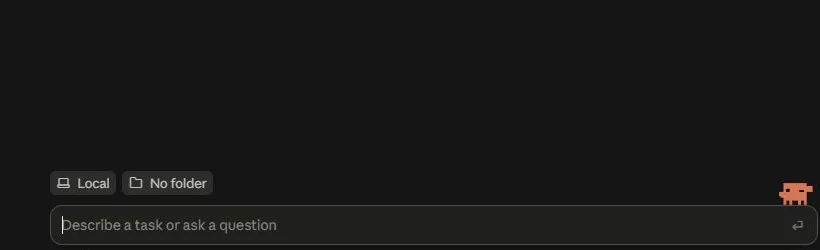
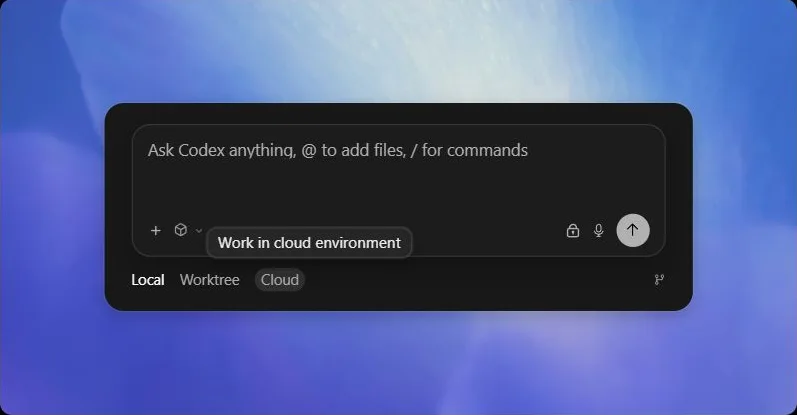
What the two apps look like.
Ready when you are
Installed? Go to your kit's guide.
Each kit has its own short guide: the accounts it needs, getting the folder onto your laptop, and the first message to paste.